
Introduction
A wireless headset can absolutely handle call audio for Cisco Jabber. That part is easy. What trips up IT teams and remote workers alike is everything else: does the mute button actually mute the call? Does tapping the headset answer an incoming ring, or do you still need to click your mouse?
Compatibility isn't a yes/no question. It depends on the headset model, how it connects, your operating system, and whether Jabber and the manufacturer's software actually talk to each other for call control.
This guide walks through the headset types that work with Jabber, how to check compatibility before you buy, setup and troubleshooting steps, and what matters most for offices, contact centers, and remote teams outfitting Jabber users across the US.
Key Takeaways
- Your computer or phone must recognize the headset as an audio device before Jabber can use it.
- Call control (answer, end, mute) usually needs a USB dongle, wireless base, or vendor software—not Bluetooth alone.
- Confirm compatibility for your exact Jabber version, OS, and headset model—not just brand or category.
- Test one setup before ordering headsets for a whole floor or department.
What Makes a Wireless Headset Compatible With Cisco Jabber?
Cisco describes Jabber as an all-in-one communications app for calling, messaging, presence, and conferencing. That's the software side. Your headset still has to clear two separate bars.
Basic audio compatibility means Jabber can send call audio to your headset and pick up your voice through its microphone. Almost any Bluetooth or USB headset clears this bar once the operating system recognizes it.
Call-control compatibility means the headset's buttons can answer, end, mute, or adjust volume on a Jabber call without touching the keyboard. This layer is model-specific.
Cisco's headset compatibility guide maps individual models, not brands, to supported connection paths and Jabber versions. A "UC-certified" label does not guarantee full call control on Jabber, so verify the exact SKU.
Connection Type Changes What You Get
| Connection | Typical Strength | Jabber Call-Control Risk |
|---|---|---|
| Bluetooth direct | Simple pairing; easy mobile switching | Varies by model and OS |
| USB wireless dongle | Consistent recognition; dedicated pairing | Most reliable path for full call control |
| DECT base station | Long range; office-grade durability | Depends on supported base-to-PC link |
Poly's supported-devices documentation, for example, lists USB as supported for Jabber while Bluetooth Direct is not on certain product lines. That one gap is often the difference between a clean rollout and a pile of support tickets.
Operating System Matters Too
Jabber behaves differently on Windows, macOS, and mobile clients, and headset makers rarely support every platform the same way. Some call-control apps are Windows-only. Before you standardize on a model, confirm:
- Jabber version on each endpoint
- OS and version in use
- Bluetooth or USB availability on the machine
- Dongle or base station requirements
- Microphone permissions enabled at the OS level
- Call-control features you actually need (answer, mute, volume, end)
Wireless Headset Types and Use-Case Recommendations
Not every wireless headset fits every Jabber use case. The three main categories (Bluetooth, USB wireless, and DECT) each solve different problems.
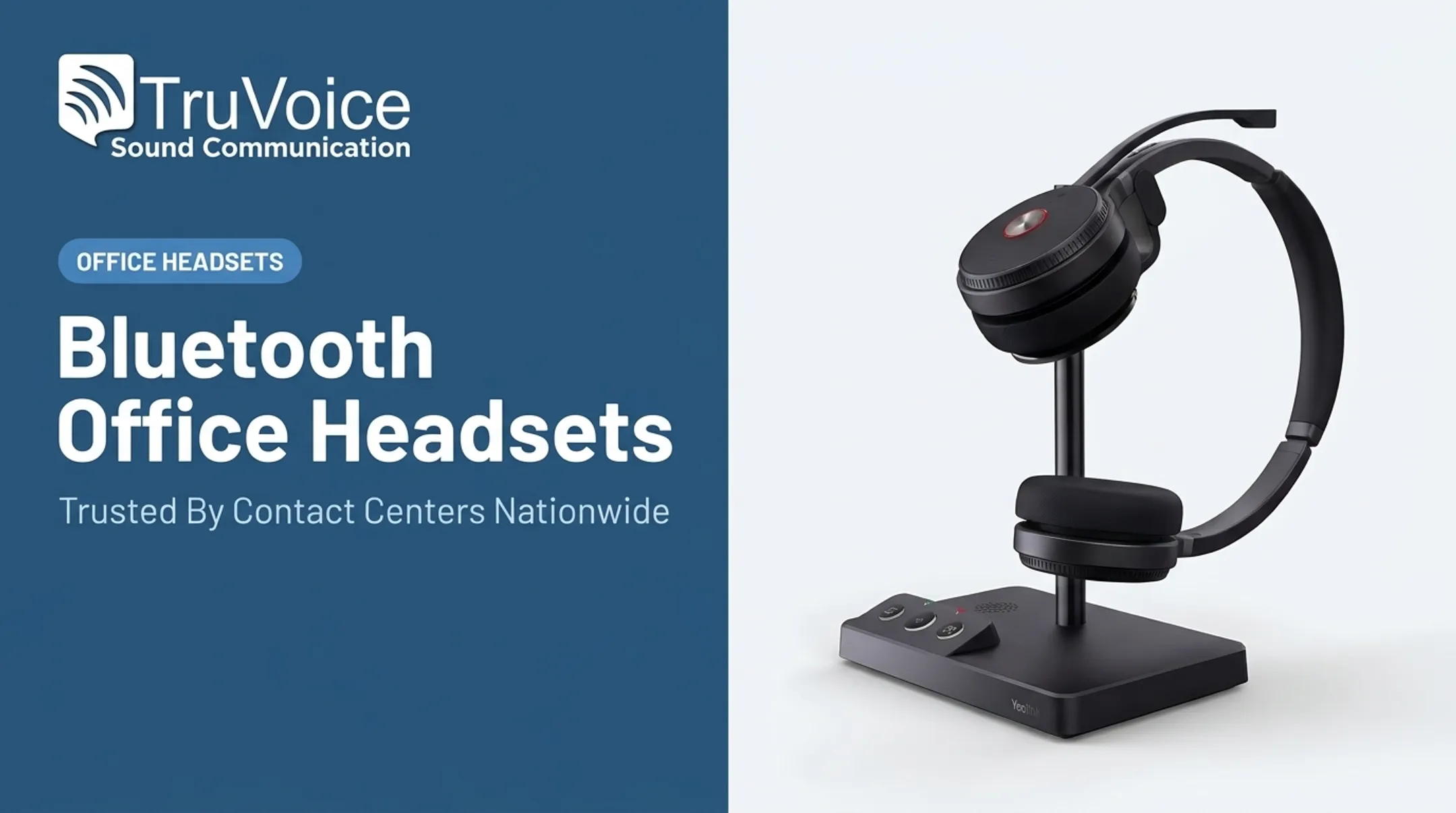
Bluetooth headsets suit mobile and hybrid workers who bounce between a laptop and a phone throughout the day. Pairing is quick, but relying on a computer's built-in Bluetooth radio can be less consistent than a dedicated USB dongle, especially in busier office environments with interference.
USB wireless headsets with a dongle are the simpler, steadier choice for desk-bound Jabber users. The dongle acts as its own audio device, which tends to sidestep the OS-recognition issues that sometimes affect native Bluetooth.
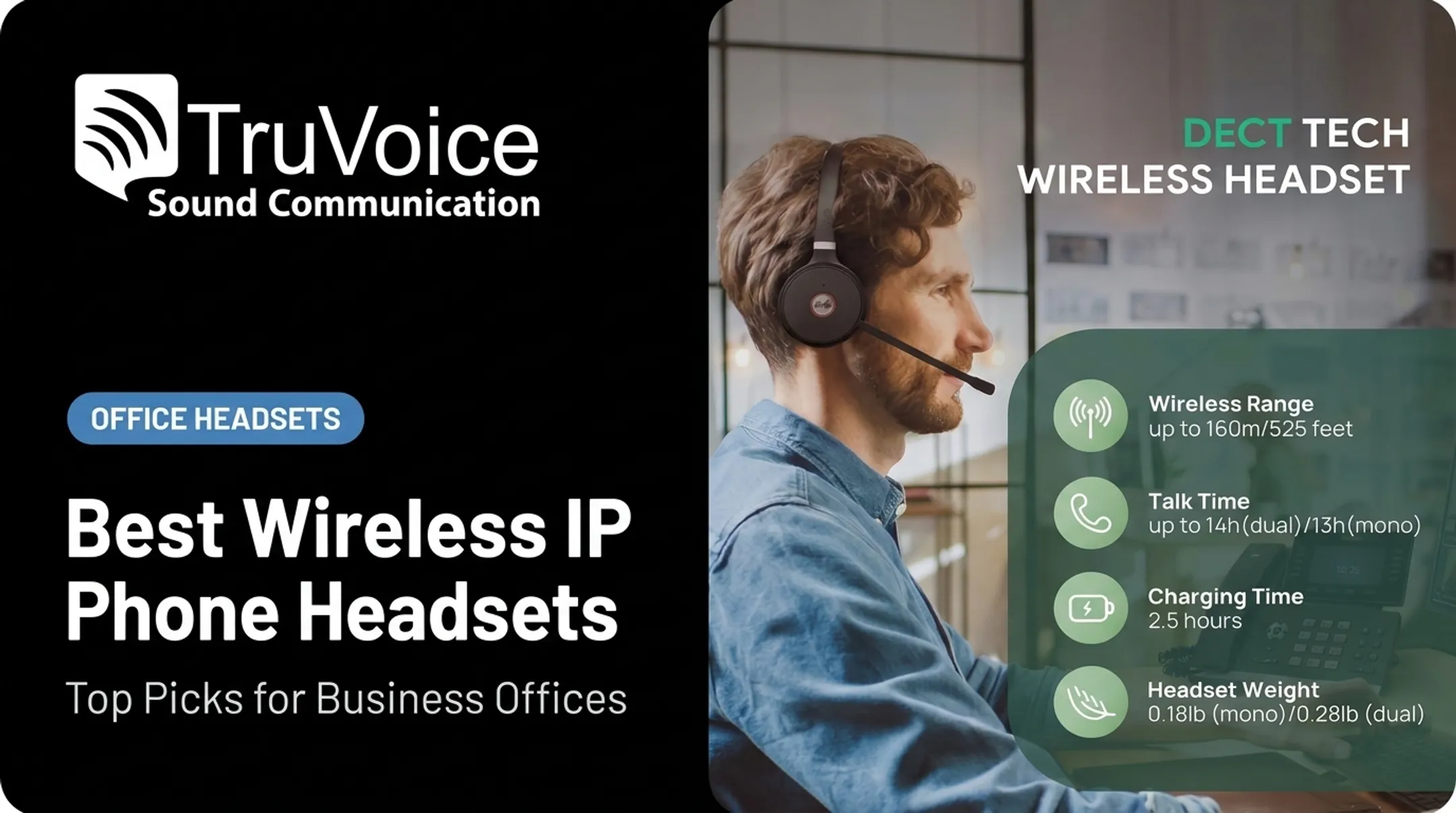
DECT wireless headsets with a base station make sense for larger offices and contact centers. Range matters here: manufacturer specs list the Jabra Engage 75 at up to 490 feet and the Poly Savi 8200 series at up to 450 feet, though real-world office range is usually shorter once walls and interference are factored in.

Matching Headsets to the Workflow
- Remote and hybrid workers: Prioritize simple pairing, dependable mic quality, all-day comfort, and easy charging. A USB dongle often beats a laptop's native Bluetooth for consistency.
- Corporate offices: Weigh mono vs. stereo wear, noise isolation, battery swap options, and charging stations for shared desks.
- Contact centers: Look at fleet-level concerns : replacement cycles, consistent accessories across agents, and vendor technical support.
- Multi-device users: For Jabber on a computer and a desk phone, choose a DECT base or multi-device headset that switches between both.
For high-volume deployments, small choices add up quickly. Bulk buyers should plan consistent accessory kits, predictable replacement cycles, and onboarding docs that work the same way for every new hire.
TruVoice Telecom supports offices and contact centers on this kind of rollout with bulk purchasing guidance and a wireless and wired headset lineup, so a 50-agent fleet gets matching gear instead of mixed models.
Quick Decision Framework
- Choose Bluetooth for portability and mobile switching.
- Choose USB wireless for straightforward, computer-focused reliability.
- Choose DECT for office range and multi-device workflows.
- Verify the exact product model before purchase : category compatibility never guarantees identical Jabber functionality.
How to Set Up and Troubleshoot a Wireless Headset With Jabber
Getting a new headset working with Jabber usually follows the same sequence, whether it's a $70 USB model or a $200 DECT system.
Initial Setup Steps
- Charge and connect the headset. Pair over Bluetooth, plug in the USB dongle, or complete DECT base setup.
- Confirm OS recognition. Open your computer's sound settings and check that the headset shows up as both a microphone and a speaker option.
- Select the headset inside Jabber. Jabber's audio options let you choose ringtone, speaker, and microphone devices separately. Set all three.
- Test a real call. Check the microphone picks up your voice, mute actually mutes, and the answer/end buttons respond.
Software and Permission Checks
- Review your OS microphone permissions (both system-level and app-level).
- Check Jabber's own audio settings for the correct input/output selection.
- Confirm Bluetooth or USB device permissions haven't been blocked by IT policy.
- Install or update manufacturer software when call control requires it.
- Remove outdated headset-management apps that can conflict with a newer install.
If Jabber Doesn't Recognize the Headset
- Test the headset in another app first. If it works elsewhere, the issue is likely a Jabber device-selection setting, not the hardware.
- Re-pair the Bluetooth connection or reseat the USB dongle.
- Restart Jabber after reconnecting.
- Try a different USB port, or test on another computer if one's available.
If Audio Works But Buttons Don't
This is the most common partial-compatibility complaint, and it almost always points to a call-control gap rather than a broken microphone. If your headset plays audio fine but the mute or answer button does nothing, check:
- Confirm the exact headset model number (not just the product line)
- Verify whether it's the UC-specific variant or a consumer version
- Match your installed Jabber version against the manufacturer's current documentation
A headset can pass the audio test perfectly and still fail call control. Those are two separate compatibility questions.
Desk Phones Are a Different Problem
Connecting a wireless headset to Jabber on a computer is not the same as connecting one to a Cisco desk phone. Desk-phone setups often need an electronic hook-switch adapter or a handset lifter for remote answer/end, accessories that have nothing to do with your computer's Jabber configuration. Check the desk phone's documentation separately.

Escalation Checklist for IT
Before calling support, have this ready:
- Jabber version and OS
- Headset model and connection method (Bluetooth, USB, DECT)
- What's failing (no audio, one-way audio, buttons unresponsive)
- Firmware version, if applicable
- Steps already attempted
Test one known-working configuration before rolling out to a whole team. Fixing a single headset is far easier than debugging fifty at once.
What to Check Before Buying a Wireless Headset for Jabber
Before adding headsets to a cart, match the purchase to the actual workflow. A remote employee on Jabber-only calls has different needs than a contact center agent switching between a softphone and a physical desk phone all day.
Confirm these in writing before ordering:
- Call control: audio-only vs. answer, end, and mute
- Audio profile: mono vs. stereo, plus noise-cancellation quality
- Coverage: wireless range and battery life for your workspace
- Wear and power: cradle vs. USB charging, plus all-day comfort
For business deployments, purchase terms matter as much as the spec sheet. Ask about:
- Replacement part availability and firmware update support
- Warranty length (varies by model, often 1-2 years)
- Return policy if a headset doesn't work as expected
- Bulk pricing for larger orders
TruVoice Telecom offers lifetime product support across its catalog and a 30-day money-back guarantee on website orders. Bulk-order pricing assistance is available for teams standardizing headsets across a department or call center floor.
Before you standardize, pilot the exact model on your organization's real Jabber build, OS image, and security settings. Don't roll out a headset fleet-wide on a brand claim alone. Ask your supplier to confirm the specific model and required accessories—not a generic compatibility statement.

Frequently Asked Questions
Which wireless headsets are compatible with Cisco Jabber?
Brand alone doesn’t guarantee fit. Match the headset to your Jabber endpoint, OS, and connection method, and confirm the exact SKU in the manufacturer docs and Cisco’s compatibility guide before you buy.
Is Cisco Jabber discontinued?
Jabber isn't universally discontinued; Cisco's Windows product page currently lists it as available. However, Cisco's end-of-life notice applies specifically to versions 12.8.x and 12.9.x, so check your deployed version and upgrade if needed.
Why isn't Cisco Jabber recognizing my headset?
It’s usually a device-selection issue. Confirm the OS sees the headset, set it as Jabber’s ringtone, speaker, and mic, and allow microphone access. Re-pair the headset or restart Jabber if it still doesn’t show up.
What is Cisco Jabber used for?
Jabber is a unified communications app supporting softphone calling, instant messaging, presence, voice messaging, and conferencing for business teams.
Can I use a wireless headset with a Cisco desk phone?
Yes, but it's different from using one with Jabber on a computer. Desk phones often need a compatible wireless base, electronic hook-switch adapter, or handset lifter for remote answer/end control.