
This article looks at whether a clip-on webcam is worth adding to your setup, how it compares with what's already built into your laptop, and what to check before buying one. We'll cover video quality, mounting, connectivity, privacy, portability, audio, and how to match a camera to the way you actually work.
Key Takeaways
- Clip-on webcams fix laptop framing and lighting limits—results still hinge on model, light, and placement
- Buy on resolution, frame rate, autofocus, low-light performance, mic quality, privacy shutter, and connector/OS fit
- Occasional callers can keep a built-in cam; daily remote and client-facing roles gain the most
- Test the webcam in your real meeting app and confirm the laptop lid can hold the clip
What Is a Clip-On Webcam?
A clip-on webcam is an external camera built with its own clip, hinge, or spring-loaded mount so it can sit directly on top of a laptop screen instead of needing a separate stand. Some use adjustable clips, others use magnetic mounts, but the goal is the same: attach to the display, plug in, and start the call.
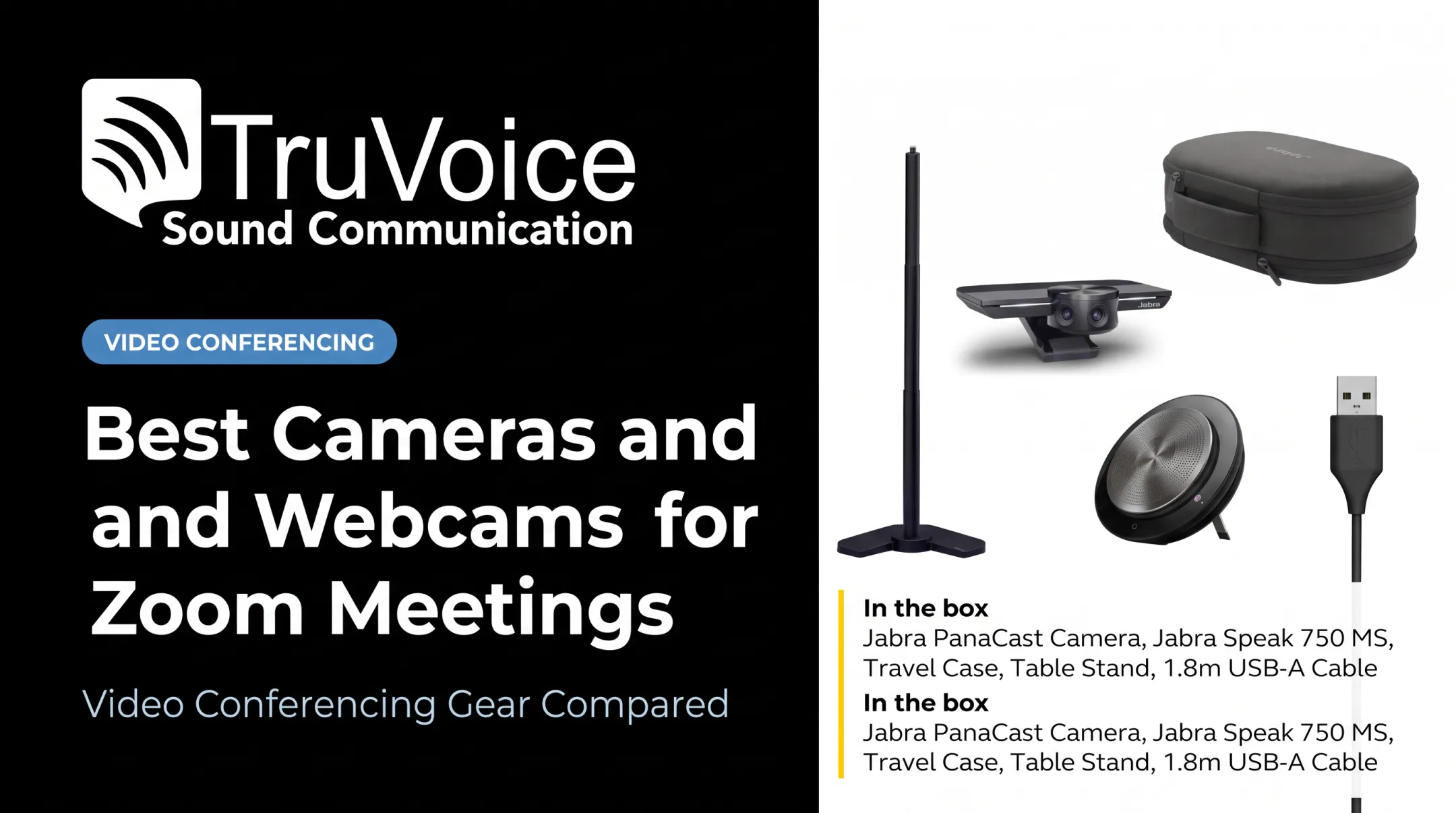
This differs from webcams designed for monitor stands, tripods, or desk bases. Those suit a fixed desktop setup, but they aren't built to travel with a laptop lid. A clip-on model, like the Jabra PanaCast 20 or the TruVoice W830 HD Webcam, is meant to move with you.
How It Connects
Setup is usually simple:
- Clip the camera onto the top center of the display
- Connect it via USB (USB-A or USB-C, depending on the model)
- Let the operating system detect it automatically
- Select the external camera inside your meeting app
Most clip-on webcams, including the Jabra PanaCast 20 and TruVoice W830 HD Webcam, are plug-and-play with no driver installation required.
Advantages and Tradeoffs
Benefits include:
- Higher, more natural lens position than a laptop’s built-in bezel camera
- Easy moves between laptops, desks, and meeting rooms
- Simple recentering when a built-in lens sits too low or off to the side
Tradeoffs include:
- Extra cable to manage during calls
- Clip fit that varies by screen thickness
- Added weight on a thin laptop lid
- Removal before closing or packing the laptop
Clip-On Webcams vs. Built-In Laptop Cameras
Image Quality and Framing
Resolution numbers matter less than people assume. Lens quality, sensor size, and how well a camera handles exposure and dynamic range often make a bigger visual difference than jumping from 720p to 4K.
Built-in cameras are fixed in the bezel, usually below or beside the screen's centerline, which is why callers often end up looking down or off to the side. A clip-on webcam sits higher and can be angled toward eye level.
The Jabra PanaCast 20, for example, pairs a 13MP sensor with a 90° field of view and real-time lighting adjustment for uneven light. In practice, that means fewer washed-out faces near a window.

Convenience, Portability, and Audio
Built-in cameras win on one thing: zero setup. Nothing to plug in, clip, or forget at home.
External cameras trade that convenience for flexibility. They move between laptops and desks, and many include built-in microphones, such as the Jabra PanaCast 20's three-microphone array or the Boom Mini's onboard mic.
A dedicated headset still tends to deliver more consistent voice quality in noisy offices, since it sits closer to your mouth. If your calls happen in shared spaces, pairing a webcam with a headset usually solves more problems than the camera's mic alone.
Privacy and Control
External cameras generally offer more visible privacy control than a laptop's built-in lens. Microsoft's hardware guidance requires that a physical camera shutter fully block the sensor and never be software-controlled. Many clip-on models meet this directly.
The Jabra PanaCast 20's integrated privacy cover slides across the lens manually, so there's no app setting to double-check before a call.
Unplugging an external camera is also a hard stop, while a built-in camera relies entirely on operating-system permissions and app settings.
Who Actually Needs the Upgrade
Remote work has made webcams a daily tool rather than an occasional one. The U.S. Bureau of Labor Statistics found that 35.5 million people teleworked or worked from home for pay in early 2024, roughly 22.9% of everyone at work.
A clip-on webcam tends to pay off for:
- Remote and hybrid employees who want a consistent camera position across home and office setups
- Teachers, presenters, and content creators who need better framing, autofocus, or a wider field of view
- Frequent travelers who want compact gear that sets up in seconds
- Anyone whose built-in camera sits in the wrong spot, such as a hinge-mounted below eye level
A clip-on is less necessary when:
- You only take occasional calls and your current camera looks fine
- Lighting or a noisy mic (not the camera) is the real complaint
- Your laptop already has a strong built-in camera, as some newer models do
How to Choose a Clip-On Webcam
Start with how you'll actually use the camera, not the spec sheet. A teacher demonstrating documents needs different features than someone taking two client calls a week.
Resolution, Frame Rate, and Image Performance
Full HD (1080p) at 30fps covers most video calls. Higher resolution or frame rate helps when you crop or zoom into the frame, demonstrate physical products, or record content for later use.
Beyond resolution, check for:
- Autofocus that keeps you sharp as you move
- Low-light handling and automatic exposure correction, since mixed lighting from windows and overhead bulbs trips up cheaper sensors
- Field of view wide enough for one person, or wider for group setups
Always verify current specs on the manufacturer's page; sensor and processing quality vary more between models than resolution numbers suggest.
Physical Fit and Connections
Not every clip fits every laptop. Before buying, check:
- Clip grip and hinge range against your laptop's lid thickness
- Whether the camera folds flat for travel
- Cable length for your desk or monitor setup
| Connector | Common Use |
|---|---|
| USB-A | Older laptops, most desktop docks |
| USB-C | Newer laptops; may need an adapter on USB-A-only machines |
Confirm compatibility with Windows, macOS, or ChromeOS, and check whether a managed business laptop restricts driver installation or peripheral use.
Privacy, Software, and Audio
Look for a physical lens cover or shutter, not just a software toggle, plus a visible indicator light when the camera is active. Confirm the manufacturer's firmware-update process, and verify the correct camera is selected as your video source before joining a call.

Treat the built-in microphone as a bonus, not the main event. If clear, consistent speech matters more than convenience, pair the webcam with a dedicated headset instead of relying on the camera's mic.
How to Attach, Set Up, and Improve a Clip-On Webcam
Getting a clip-on webcam working correctly takes a few minutes, but skipping steps causes most of the problems people run into later.
Setup Steps
- Inspect the clip before attaching it. Make sure the padding won't scratch the display and the hinge opens wide enough for your lid.
- Place it at the top center of the screen, balanced so it doesn't tip forward or lean sideways.
- Connect the cable to an available USB port, using an adapter if your laptop only has USB-C.
- Let the operating system detect the device. Plug-and-play models like the Jabra PanaCast 20 need no driver installation.
- Select the external camera inside your meeting app's video settings, since many apps default to the built-in camera.
Positioning for a Natural Look
Keep the lens close to eye level so you're not looking down at your screen. Frame your head and shoulders with a small margin above your head, not a large gap of empty ceiling.
A few adjustments improve image and audio quality without buying new gear:
- Face a window or soft light source; avoid strong backlight that silhouettes your face
- Clean the lens; it picks up fingerprints faster than you'd expect
- Raise the laptop on a stand to fix a low camera angle
- Clear clutter from the background so viewers focus on you
- Use a headset for audio if the room is noisy
Troubleshooting Common Problems
- Wrong camera selected: Check the meeting app's video settings, not just the operating system's default device
- Blank image or flicker: Reconnect the USB cable, try a different port, or restart the app
- Poor framing: Recheck clip placement and hinge angle
- App won't detect the device: Confirm the camera has power and try a direct USB port instead of a hub
- Permissions blocked: Check camera access under your operating system's privacy settings
Business Buying and Support Considerations
Equipping a whole team with the same webcam model saves support time later. Before a bulk order, IT and procurement teams should standardize on:
- Connector type (USB-A vs. USB-C) across the laptop fleet
- Operating-system support and any restrictions on managed devices
- Privacy features, including physical shutters and indicator lights
- Mounting design that fits the range of laptop models in use
- Compatibility with existing meeting platforms and headsets
Pilot Before You Buy in Bulk
Test a small batch first. Check clip fit on your laptop models, display thickness, and USB port availability. Then confirm how the camera behaves on your meeting platform and under your security policies before a company-wide rollout.

A short pilot catches clip-fit and compatibility issues a spec sheet won't show.
Look Beyond the Purchase Price
Total ownership cost goes beyond unit price:
- Adapters for mismatched connectors
- Replacement cables
- Support time spent troubleshooting
- Return or warranty terms
A specialist can reduce those hidden costs. TruVoice Telecom provides impartial guidance on video-conferencing equipment, including the Jabra PanaCast 20 and TruVoice W830, with US-based technical support and lifetime product support across its range.
Teams outfitting multiple desks can access bulk-purchase pricing. Confirm current product-specific terms before placing a large order.
Frequently Asked Questions
Can I attach a camera to my laptop?
Yes. Most clip-on webcams attach to the top edge of a laptop display and connect through USB. Check clip clearance for your lid's thickness and remove the camera before closing or packing the laptop.
Are clip-on webcams better than laptop cameras?
Usually yes. They offer better positioning, image quality, privacy controls, and portability. How much you gain still depends on the model, your lighting, and your built-in camera's quality.
How do I connect a clip-on webcam to my laptop?
Clip it to the top center of the display, plug the USB cable into an available port, and let the operating system detect it. Then select the external camera inside your video app's settings.
Do clip-on webcams work with Zoom and Microsoft Teams?
Most USB webcams work with both platforms, since they support standard external cameras on Windows and macOS. Confirm your operating system version, browser permissions, and company security policies beforehand.
What should I look for in a clip-on webcam?
Prioritize resolution, autofocus, low-light performance, field of view, clip stability, USB connector type, and physical privacy features. If clear audio matters most, pair the webcam with a dedicated headset instead of its built-in mic.