
Most businesses don't start here, though. They start with a laptop propped on a stack of books, a built-in webcam, and whatever microphone happens to be closest. The results show up fast: 76% of workers report recurring echo problems in hybrid meetings, according to Owl Labs' 2026 research on hybrid meeting technology gaps. Add poor framing, incompatible meeting platforms, clunky controls, and the minutes lost hunting for the right cable before every call, and it's clear why "just use a laptop" stops working once a room fills up.
This guide covers what a real room system includes, how to size one to your space and meeting type, how platform and deployment choices affect daily use, and what setup and ongoing support actually require.
Key Takeaways
- Match camera coverage, microphone pickup, and speaker output to room size, not brand reputation alone
- Confirm the system works with your primary platform and the ones your clients and partners use
- Compare BYOD, dedicated appliance, and PC-based setups on cost, control, and IT effort
- Treat acoustics, lighting, network capacity, training, and support as core parts of the system
What Does a Video Conference Room System Include?
A video conference room system is a set of purpose-built hardware and software designed to deliver two-way video, clear audio, content sharing, and simple meeting controls in a shared physical space.
That's different from a standalone webcam clipped to a monitor or a USB speakerphone on a desk. Those tools work fine for one person on a laptop, but they weren't built to cover a table of six or fill a 20-foot room with intelligible sound.
A complete system pulls several pieces into one working setup:
- Camera(s) covering the room
- Microphones capturing every seat
- Speakers projecting audio clearly
- A display for remote faces and shared content
- Compute or a codec running the meeting software
- A controller for starting, joining, and ending calls
Cameras
Camera specs vary widely, and the right choice depends on room shape more than brand.
Field of view is the first number to check: the Jabra PanaCast 50 uses three 13-megapixel cameras stitched into a 180-degree panoramic 4K image, while narrower cameras like the Logitech Rally cover 90 degrees with 15x optical zoom for pan-tilt-zoom control on longer rooms.
Look for:
- Resolution and low-light handling. Most business-grade cameras now support 4K, but backlit windows and dim rooms still expose weaker sensors
- Group framing or speaker tracking. Features like Jabra's Virtual Director or Poly's DirectorAI automatically adjust the shot as people talk
- Privacy controls. A physical shutter or mute light matters more once a camera stays mounted permanently
Test any camera in the actual room before committing. A spec sheet can't tell you how it handles your lighting.
Microphones and Audio Processing
Audio quality decides whether a meeting works, more than video ever does. Beamforming microphone arrays, like the eight beamforming mics built into the PanaCast 50, isolate voices from room noise by focusing pickup toward whoever's speaking instead of the whole room at once.
Key features to check:
- Acoustic echo cancellation strips out the sound your own speakers produce so the far end doesn't hear itself
- Automatic gain control levels out loud and soft speakers so no one gets lost
- Noise suppression filters HVAC hum, keyboard clatter, and hallway chatter
- Pickup range varies by device: table mics like the Polycom Trio 8500 reach roughly 14 feet, while the RealPresence Trio 8800 extends to about 20 feet with expansion mics
Ceiling arrays and boundary mics both work well; the right pick depends on table shape and how many seats need coverage.
Speakers and Room Audio
Speaker placement affects remote participants more than anyone in the room notices. Uneven volume, echo, and reverb are usually acoustic problems, not hardware problems.
AVIXA's conference room design guide recommends treating reverberation with acoustic panels or specialized ceiling tiles, isolating rooms from HVAC and hallway noise, and placing panels at first-reflection points to cut echo.
For huddle rooms, an integrated video-bar speaker (like the four zero-vibration stereo speakers in the PanaCast 50) is usually enough. Larger rooms need separate speakers distributed so sound reaches every seat evenly, not just the chairs closest to the display.
Displays and Content Sharing
One display works for most huddle and small rooms. Larger spaces often benefit from two: one showing remote participants, the other dedicated to shared content, so no one has to choose between watching faces and reading a slide deck.
Microsoft's Teams room guidance offers a useful rule of thumb: one inch of content size for every 1.5 inches of viewing distance, with content visible from every seat. Zoom Rooms, for comparison, supports 4K on a single display for its certified appliances.
Whichever route you take, confirm supported input types and cable lengths, native resolution versus what the platform actually outputs, and whether wireless presentation is available, since dongle-hunting still eats up meeting time.
Compute, Codec, Controller, and Connectivity
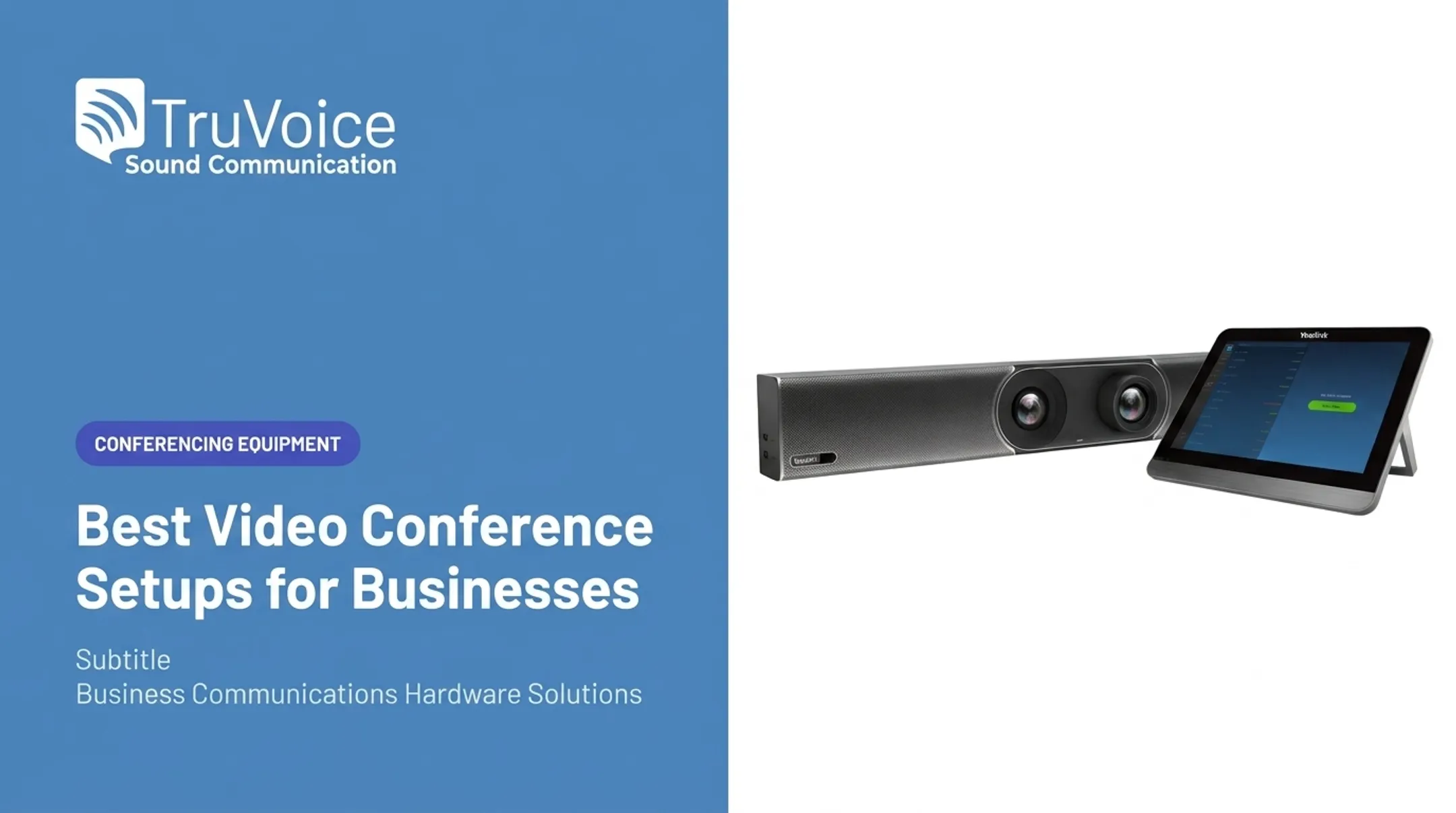
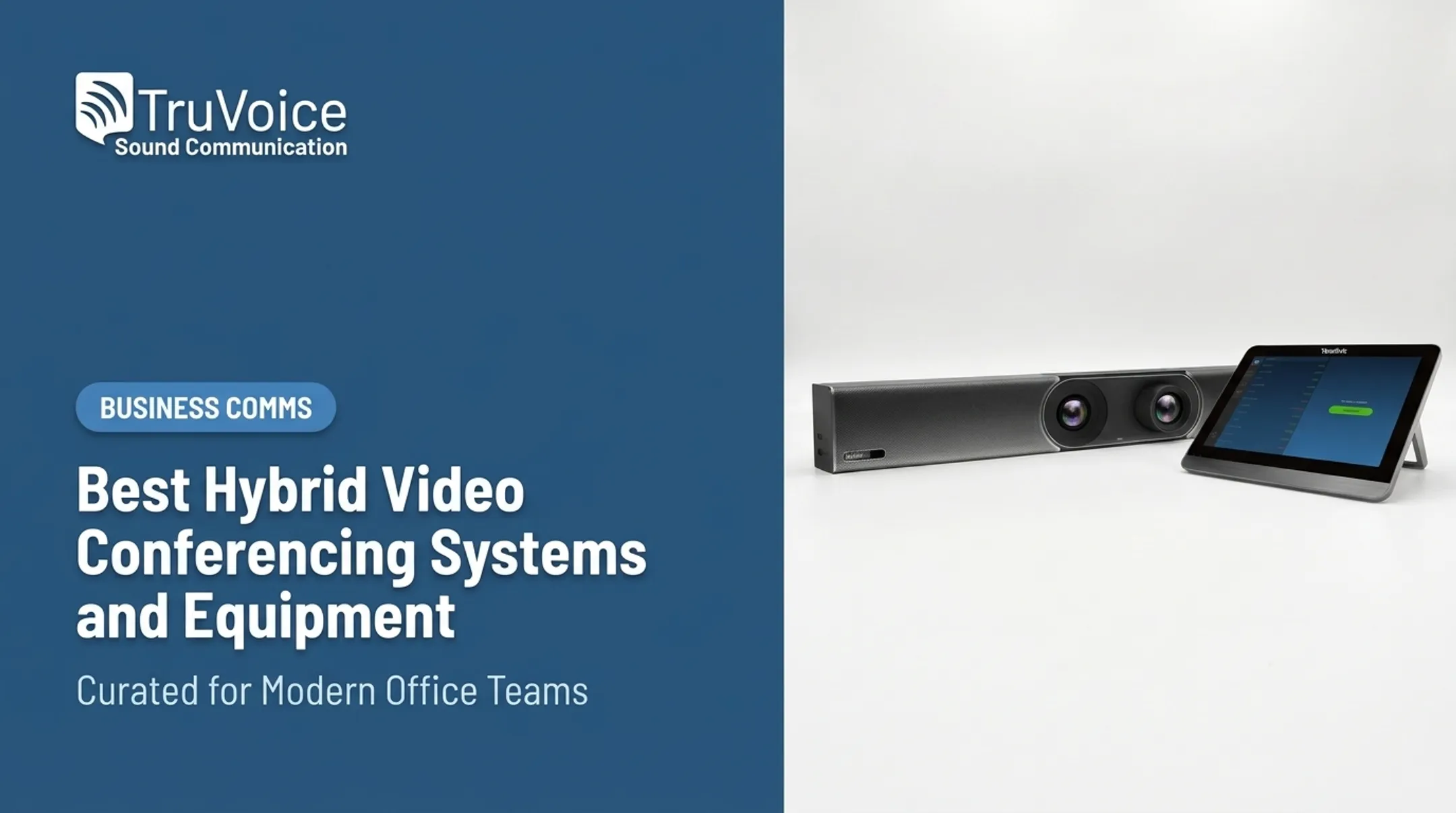
Every system needs something running the actual meeting software. That may be a codec built into an all-in-one bar—the PanaCast 50 uses an onboard Android processor with edge AI, so no room PC is required. Other setups use a separate mini-PC connected to the camera, mic, and display.
A touch controller, like the PanaCast 50's included 10.1-inch touchscreen, lets anyone join, share, or end a call without touching a keyboard. Beyond the obvious pieces, a complete design also needs:
- Reliable network capacity for video traffic
- Clean cable routing and labeled connections
- Mounting hardware rated for display and camera weight
- A documented operating procedure for when the regular presenter isn't in the room
- A schedule for firmware and security updates
Skip these details, and a system that worked perfectly on installation day starts causing problems within a few months.

How to Choose a System for Room Size and Meeting Type
Before comparing products, assess the room itself:
- Room dimensions and seating layout
- Typical participant count, in-room and remote
- How often the room gets used, and for what
- Presentation habits (slides, whiteboards, demos)
- Accessibility needs for hearing or vision
- Whether meetings are mostly internal, customer-facing, training, or collaborative
The answers point you toward a room category, and each category has fairly predictable equipment needs.
Focus and Huddle Rooms
For one to a few people, keep it simple. A compact all-in-one bar with a wide enough view, near-field audio, and one-tap joining beats a complex modular setup every time.
Watch for acoustic surprises even in small rooms:
- Glass walls bounce sound and create echo
- Hard surfaces amplify reverb
- HVAC vents near the table add constant background noise
- A display mounted away from the table pulls eye contact off-camera
A huddle room with all these problems will sound worse than a properly treated small room, even with better hardware. Test the space, not just the spec sheet.
Small and Medium Conference Rooms
Rooms seating 6 to 14 people need wider camera coverage, multiple microphones or an array, and speakers distributed enough to reach the back of the table evenly.
A single video bar can still work here (the PanaCast 50's 180-degree view and eight-microphone array cover most mid-size rooms), but confirm pickup range against your actual table length.
Automatic group framing or speaker tracking earns its keep in these rooms, since a fixed wide shot leaves remote participants with no visual cue about who's talking.
A second display, split between gallery view and content, also helps once a room regularly seats eight or more.
Test any framing or tracking feature in the real room before buying. Demos rarely show what happens with an oddly shaped table or a bright window behind the presenter.
Large Rooms, Training Spaces, and Boardrooms
Rooms over roughly 20 people typically need a modular approach: multiple cameras covering different zones, distributed microphones instead of one central array, separate speakers, and often two or more displays.
Microsoft's own room-planning guidance uses a 700-900 square foot, 20-25-person boardroom as its large-room example and notes that multiple cameras are needed to capture that kind of space comprehensively.

Before finalizing a large-room design:
- Map audio and video coverage for every seat, not just the front row
- Review network capacity, since multiple camera feeds add real bandwidth demand
- Plan control complexity, since more components mean more chances for user error
- Test from the farthest seat, not just the presenter's chair
Specialized Business Use Cases
Contact center training rooms, client-facing spaces, and hybrid workshops each shift equipment priorities:
- Training rooms built for live coaching need dual-channel audio so a supervisor can listen without interrupting
- Client-facing rooms need consistent framing and clean audio more than extra features
- Hybrid workshops with breakout activities need flexible content sharing and possibly recording
Poor room design has measurable costs. Owl Labs research found that 77% of workers have lost meeting time to technical difficulties. That delay compounds when a room hosts high-stakes client calls or new-hire training instead of routine check-ins.
Match microphone coverage, content-sharing method, recording capability, and control complexity to what the room is actually used for, not what a generic setup assumes.
Platform, Deployment, and Compatibility Choices
The "best" system depends on more than hardware quality. Your organization's primary meeting platform, existing devices, security policies, IT staffing, and how often you join meetings hosted by outside companies all shape which deployment model makes sense.
Platform Compatibility and Certification
Certification matters because it verifies hardware works reliably with a platform, not just that it can technically connect:
- Microsoft Teams Rooms: Checks security, audio/video quality, and accessibility; focuses on hardware performance rather than every cloud feature
- Zoom: Two-year hardware certification with required third-party lab testing
- Google Meet: Recommends only certified ChromeOS-connected room devices
Before buying, confirm:
- Guest joining from outside platforms
- Calendar and scheduling integration
- Wireless presentation support
- Recording and caption availability
Cross-platform gaps are common. Some Meet features, including dual-screen support and captions, aren't available when a guest joins from a Zoom Room—verify current limits instead of assuming full interoperability.
Deployment Models Compared
BYOD systems let a presenter run the meeting from their own laptop, using the room's camera, mic, and display as peripherals. They're flexible across platforms and keep complexity low—no dedicated room PC to manage.
The trade-off is dependence on whatever device shows up. Cable and adapter mismatches, inconsistent experience from meeting to meeting, and USB or charging issues are common complaints. A bar like the Poly Studio V12, built for small BYOD rooms with a 120-degree field of view, cuts some of that friction, but the laptop itself remains the weak link.
Dedicated appliance or all-in-one systems (video bars) combine camera, microphones, speakers, and meeting software in one unit, with no separate room PC. The Jabra PanaCast 50 UC VBS, for example, uses an onboard Android processor so the room works once it's mounted and connected.
These systems simplify installation and day-to-day operation. The trade-off is platform dependence: features like the PanaCast 50's wireless content sharing may only work on specific platforms such as Zoom. Before buying, confirm whether the appliance can move to another platform later. Also check how firmware updates and device management work at scale.
PC-based and modular systems suit larger or more complex rooms. A dedicated room PC or codec pairs with separate cameras, microphones, a controller, and a display instead of one bundled unit. That makes it easier to expand later—adding a second camera zone or extra mics without replacing the whole setup.
The cost is complexity. More components mean more install time, configuration work, and ongoing IT support. For a five-person huddle room, that trade-off rarely makes sense. For a 25-seat boardroom, it usually does.

Selecting a Practical Deployment Model
| Factor | BYOD | Dedicated appliance | PC-based / modular |
|---|---|---|---|
| Best for | Small rooms, mixed platforms | Huddle to mid-size rooms | Large or complex rooms |
| IT involvement | Low to moderate | Low | Moderate to high |
| Platform flexibility | High | Limited to certified platforms | High |
| Typical cost | Lower | Roughly $235-$3,899 for bars and all-in-ones | Higher, priced per component |
Budget, meeting frequency, and platform diversity usually decide the winner faster than any feature list. A five-person team on one platform rarely needs what a 20-seat, multi-platform boardroom requires.
TruVoice Telecom carries video bars, all-in-one systems, speakerphones, and accessories across this range, and gives straightforward guidance on matching equipment to a specific room rather than pushing whatever's in stock.
Video Conference Room Setup and Ongoing Support Checklist
Buying the right hardware is half the job. Setup and ongoing support determine whether it keeps working.
Before you buy, check the room itself:
- Measure the room and map seating
- Check camera sightlines from every position
- Plan microphone coverage against table size
- Confirm speaker placement reaches every seat
- Note lighting and acoustic reflections from glass or hard floors
- Check power outlet locations and cable routes
- Review network capacity against expected video load
- Confirm platform requirements match your primary tool
During commissioning, once hardware is installed:
- Apply current firmware and security settings
- Test calls with both internal and external participants
- Verify content sharing works from multiple device types
- Check audio quality from every seat, not just the table center
- Document normal operation and a fallback procedure for when something fails
For ongoing use, post a simple start/join/share/end workflow near the controller. That one sheet prevents most day-to-day confusion. Then lock in a few habits:
- Label cable connections at the table and rack
- Train at least one office or IT contact per location
- Schedule periodic firmware reviews
- Track recurring issues so the same fix is not rediscovered every few months
Lifecycle planning matters after go-live, too. Replacement parts, warranty terms, and platform compatibility all shift over time.
TruVoice Telecom backs its conferencing equipment with lifetime product support, a 30-day no-questions-asked return policy on website orders, and bulk rates for offices standardizing gear across multiple rooms. That support usually matters more two years in than it does on install day.

Frequently Asked Questions
What is the best video conference system for meeting rooms?
Match the system to room size, primary platform, participant count, audio conditions, content-sharing needs, and budget. Compare certified, interoperable options against your specific room rather than a generic "best" list.
What is the best camera for a video conference room?
Choose based on field of view, room size, framing needs, low-light performance, placement, and platform compatibility. Test any camera in the actual room before buying.
Which tool is best for video conferencing?
Evaluate preferred platform, guest access, calendar integration, security needs, and recording or caption support. Weigh those factors against your room hardware, not brand reputation alone.
Is Skype still used in 2026?
No. Microsoft retired Skype on May 5, 2025, directing users toward Microsoft Teams. Skype for Business is unaffected, but consumer and free Skype accounts are no longer active.
What is a video conference called?
Common terms include video conference, video meeting, virtual meeting, online meeting, web conference, and video call. Usage varies by platform and context, but they generally describe the same real-time video and audio experience.