
Introduction
A dropped call during a client pitch. A remote employee who can't get a word in because the room mic doesn't pick them up. A trainee who mishears instructions and repeats the same mistake twice.
These aren't rare glitches. 82% of business professionals report a negative impact from poor audio quality during virtual meetings, according to a Shure survey of 401 US business professionals and IT decision-makers.
That's missed information, repeated conversations, and weaker client impressions, multiplied across every meeting your company runs.
The best video conference setup isn't the most expensive one. It's the one that fits your room, your headcount, your platform, and your team's actual habits.
This guide breaks down five setup types businesses actually use, from a single remote employee's desk to a boardroom full of executives.
Key Takeaways
- Match equipment to the room, participant count, and meeting purpose instead of chasing camera specs alone
- Clear audio, echo control, and reliable connectivity matter more than resolution
- Small teams can start with a webcam, headset, and display; larger rooms need integrated cameras and microphone arrays
- Factor installation, support, and future scaling into your total cost, not just sticker price
- Headset-first setups work best for remote staff, contact centers, and standardized deployments
Overview of Video Conference Setups in the US Business Market
A business video conference setup is the combination of hardware, software, room environment, network connection, and daily habits that make virtual meetings work. A camera and login screen are only two pieces of that system.
US businesses configure these systems differently depending on the job at hand:
- Remote and hybrid teams need individual workstations and headsets
- Client-facing teams need boardrooms with strong audio and reliable recording
- Support and sales floors need contact-center headset deployments across dozens of agents
- Training departments need dual-channel trainer-trainee setups
- Leadership teams need board-meeting security and governance controls
A RingCentral survey of 1,000 people at US companies found that 60% of organizations were at least partially remote, and 40% reported using video conferencing more frequently than before.
The decision principle for choosing a setup comes down to four questions: who participates, where they join from, what needs to be heard or displayed, and how much ongoing management the system requires. Everything else follows from those answers.

Top Video Conference Setups for Businesses
Ranking these setups isn't about picking a "winner." Each one solves a different problem. We evaluated them against:
- Audio and video clarity
- Ease of use and joining
- Platform compatibility
- Security controls
- Room coverage and scalability
- Support requirements and overall value
Here's how each configuration stacks up.
Headset-First Setup for Remote Employees, Contact Centers, and Training Teams
This setup pairs a computer or mobile device, video conferencing software, and a wired or wireless headset with a reliable microphone. Add front-facing lighting and a stable internet connection, and you've covered the essentials.
It's the best fit for:
- Home-based agents and remote employees
- Customer-facing staff and contact-center agents
- Trainer-trainee call monitoring
- Any role where one person needs consistent, private audio
The headset's biggest advantage is microphone proximity. A mic positioned an inch from your mouth picks up your voice and rejects background noise far better than any room mic ever could. That's also why headsets standardize well across large teams: one device, one setup process, easy replacement when something breaks.
Wired vs. wireless comes down to how your team works:
- Wired (USB) headsets are plug-and-play with no battery to manage, ideal for fixed desks
- Wireless headsets add mobility for agents who need to step away from their desk mid-call, but require charging routines and battery tracking
- Both need to be verified against your specific softphone, UC platform, and operating system before a bulk order goes out
For call centers running dual-channel training, TruVoice Telecom's HD-100 USB training solution pairs two single-ear headsets with a training Y-cord so a supervisor can listen and coach live. Wireless training models extend that same trainer-trainee link up to 350 feet of range.
TruVoice also carries wired and wireless headsets for standard desk use, with selection guidance and lifetime support. Bulk pricing and a 30-day money-back guarantee apply to website orders. Conferencing platforms like Zoom or Teams are purchased separately.
Comparison snapshot:
| Factor | Details |
|---|---|
| Equipment | Headset + computer/mobile + platform login |
| Best for | Remote agents, contact centers, trainers |
| Strengths | Focused audio, privacy, easy scaling |
| Limitations | No shared room camera; single-user only |
| Scaling | Add units per new hire; standardize brand for support ease |
Small-Room or Huddle-Room Setup for Small Hybrid Meetings
Huddle rooms need less gear but more thoughtful placement. The typical setup includes an external wide-angle camera or video bar with an integrated microphone and speaker, a display, and a room computer running your chosen platform.
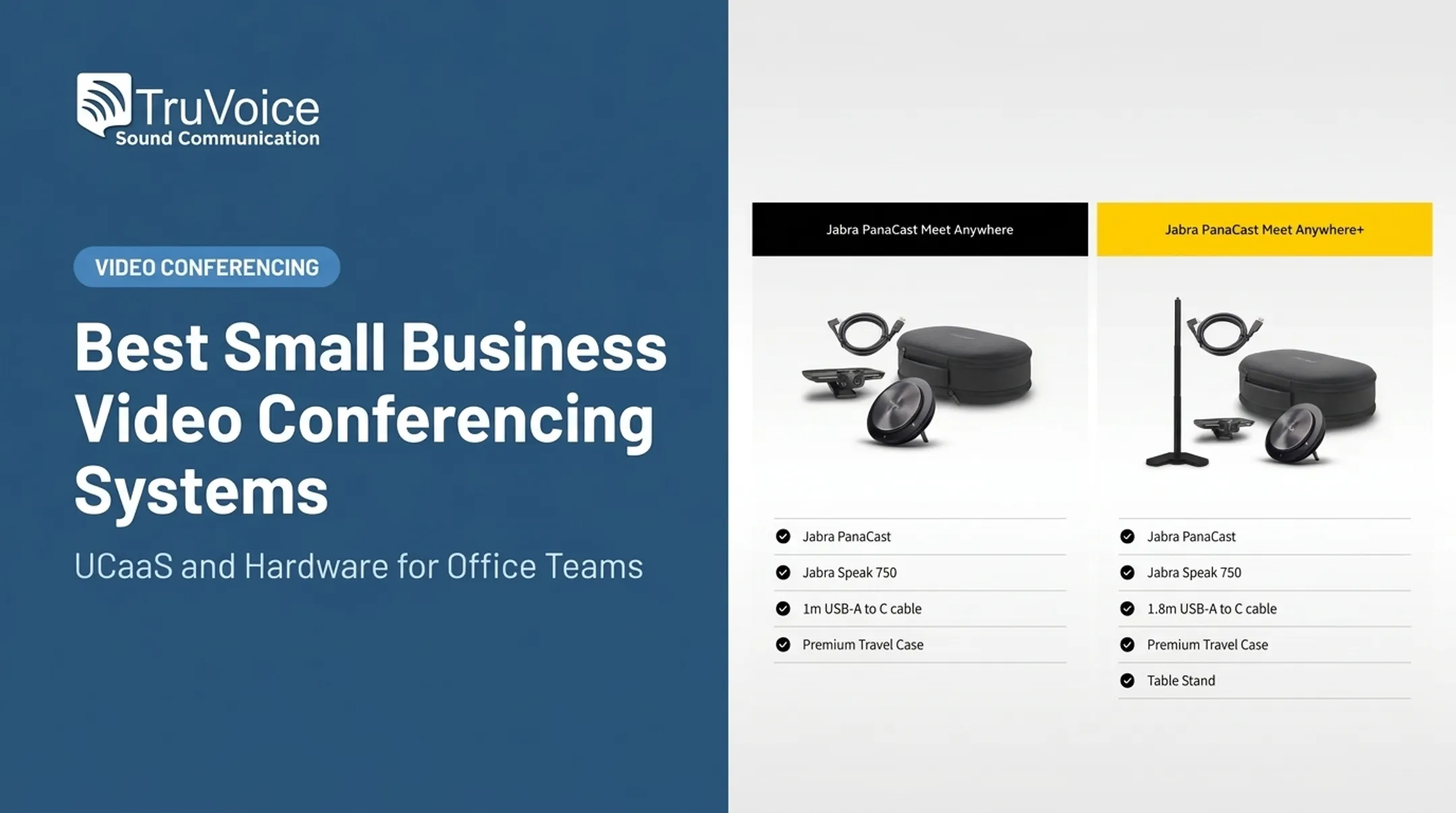
An all-in-one video bar cuts down on cable clutter and the echo problems that come from mismatched separate components. Jabra PanaCast, for example, uses Intelligent Zoom to widen its field of view automatically as participants grow from three to five, adjustable between 90° and 180° through its companion software. It's built specifically for smaller rooms and home offices.
Other options in this tier include:
- Boom UNO, a compact 1080p camera with a 120° field of view and echo cancellation, suited to home offices and small huddle spaces
- EPOS Expand Vision 3, an all-in-one video and audio bar with one-touch joining
- Boom Gemini, a speakerphone with four microphones and 8-meter pickup range, certified for Zoom, Teams, Google Meet, and Webex
Before locking in a setup, test it in the actual room. Camera placement, table position, and speaker volume all interact with the room's acoustics and lighting in ways a spec sheet can't predict.
Comparison snapshot:
| Factor | Details |
|---|---|
| Room size | 2-6 people, small tables |
| Equipment | Video bar or camera + integrated mic/speaker |
| Management | Low; mostly plug-and-play |
| Upgrade path | Add mic pods or move to medium-room gear as headcount grows |
Medium Conference-Room Setup for Recurring Hybrid Collaboration
Once a room regularly hosts 8-15 people, huddle-room gear starts to strain. Medium conference rooms need a dedicated camera (ideally with auto-framing), microphone coverage across the full table, dedicated speakers, a large display, and room controls.
Field of view and mic coverage should be chosen based on the room's actual dimensions, table shape, and whether people move around or present from different spots.
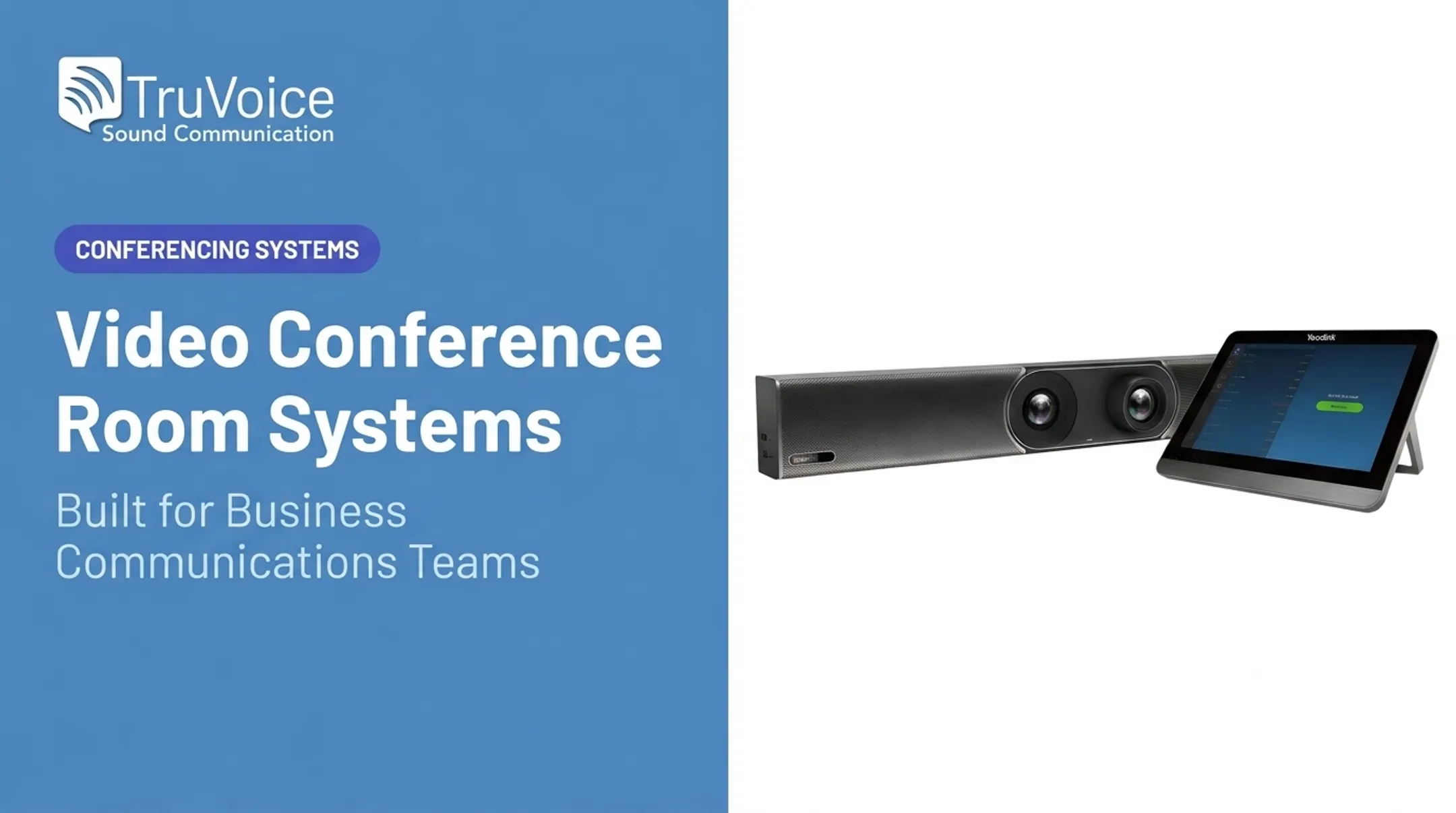
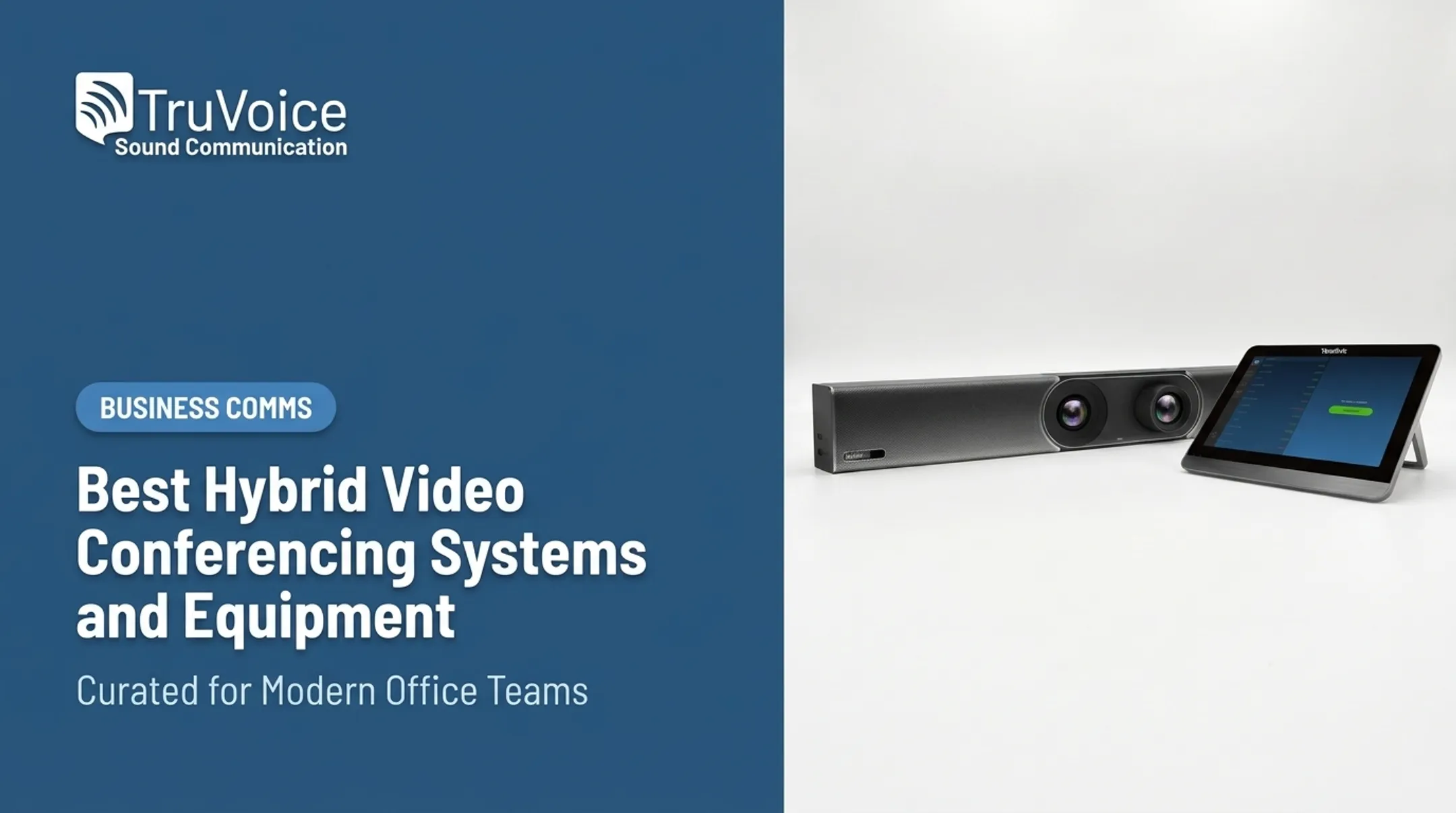
A Yealink UVC84 4K PTZ camera, for instance, is built specifically for medium and large rooms where a fixed wide-angle lens won't reach every seat. A conference phone like the Polycom Trio 8500, with 360-degree pickup and 14 feet of microphone range, fills in audio coverage that a single camera mic can't handle.
Beyond hardware, treat these as standard features rather than upgrades:
- Wireless screen sharing and presenting
- Recording and captions
- Calendar integration and one-touch joining
- Accessibility support for hearing or visual needs
For businesses running several rooms, centralized device management matters as much as the room hardware itself. Microsoft's own guidance for Teams Rooms points to selecting equipment based on room size, purpose, and layout first, then managing firmware, permissions, and security settings centrally rather than room by room.
Comparison snapshot:
| Factor | Details |
|---|---|
| Room size | 8-15+ people |
| Equipment | PTZ or auto-framing camera, tabletop mic system, dedicated speakers |
| Features | Screen sharing, recording, captions, one-touch join |
| Management | Centralized firmware/device admin across multiple rooms |
Boardroom or Executive Setup for Client Meetings and High-Stakes Decisions
Boardrooms carry different stakes. Client negotiations, board votes, and executive reviews don't tolerate a frozen screen or a garbled recording. This tier prioritizes natural eye contact, full-table audio pickup, professional lighting, and acoustic treatment that keeps voices clear from every seat.
Accurate audio and dependable recording often matter more than maximum video resolution for governance and negotiation contexts. Nobody remembers a slightly softer video feed. Everybody remembers a transcript that got a commitment wrong.
Security controls become non-negotiable at this level:
- Passcode, waiting room, or authenticated-user access before anyone joins
- Meeting locks once the session starts
- Recording permissions and defined data retention windows
- Compliance review specific to your industry (healthcare, finance, and legal all have different requirements)
Platforms like Zoom and Microsoft Teams both offer lobby/waiting-room controls and meeting locks as standard features, but exact retention rules and compliance certifications vary by platform and plan. Verify current requirements against your industry's regulations before finalizing a boardroom setup.
Comparison snapshot:
| Factor | Details |
|---|---|
| Priorities | Audio accuracy, reliable recording, professional lighting |
| Security | Authentication, meeting locks, retention policy, compliance review |
| Reliability | Backup connectivity, pre-meeting testing, documented procedures |
| Support | Rapid technical response for high-stakes meetings |
Training, Webinar, and Presentation Setup for One-to-Many Communication
This tier is built around one-to-many communication rather than round-table discussion. Presenters, trainers, and panelists each need a camera suited to their space, a dedicated microphone or headset, good lighting, a presentation display, and screen-sharing capability.
The equipment mix shifts depending on format:
- Single presenter — a quality webcam or camera plus a headset for consistent, close-proximity audio
- Multi-presenter training room — room camera plus individual mics for each speaker, since one shared mic rarely handles multiple voices well
- Recorded session — steady lighting and audio matter even more, since viewers rewatch without the forgiveness of a live moment
Platforms built for this format typically include moderator tools: participant permissions, captions, chat, Q&A management, and breakout rooms. Zoom Webinar, for example, supports breakout sessions for large audiences, while Microsoft Teams gives organizers and co-organizers control over Q&A before, during, and after an event.
Always run a rehearsal. It's the single easiest way to catch a muted mic, a wrong camera angle, or a screen-share glitch before an audience is watching.
Comparison snapshot:
| Factor | Details |
|---|---|
| Best for | Webinars, training sessions, panel discussions |
| Equipment | Camera + headset/mic per presenter, presentation display |
| Audience features | Chat, Q&A, breakout rooms, captions |
| Production needs | Rehearsal process, recording consent, moderator assignment |

How We Chose the Best Video Conference Setups
We evaluated these as complete workflows, not isolated products. We assessed each configuration on whether it actually solves the communication problem at a reasonable cost, not just on spec sheet numbers.
Audio and video performance came first:
- Microphone pickup range
- Echo cancellation and noise suppression
- Camera field of view
- Real-room performance rather than lab conditions
Compatibility came next. We checked conferencing platforms, operating systems, desk phones or softphones, calendars, displays, and existing IT policies. A headset that isn't certified for your platform is a support headache waiting to happen.
Total cost of ownership went beyond the sticker price:
- Hardware and software licensing
- Installation and room modifications
- Support, warranties, and replacement parts
- Future expansion as teams grow
A Neat industry report on total cost of ownership found that 70% of customers spent more than an hour on setup before switching to integrated solutions. Soft costs like employee disengagement and meeting disruption often outweigh the hardware price itself.

Common selection mistakes we watched for:
- Choosing resolution over audio quality
- Ignoring how the room's acoustics actually behave
- Skipping interoperability testing before bulk purchase
- Underestimating ongoing support needs
- Buying headsets incompatible with the existing phone system
- Scaling a personal desk setup into a room without redesigning for it
Conclusion
The best video conference setup is the one where every participant can see, hear, and contribute—and leave with a usable meeting outcome.
Before you buy anything:
- Document your rooms and use cases
- Test equipment in the actual space
- Compare total ownership costs, not just sticker prices
- Plan for security and support before something breaks
If your business needs headsets, speakerphones, or conferencing accessories, TruVoice Telecom offers impartial guidance on bulk and individual orders, with US-based technical support and more than 30 years of telecom experience.
Call 1-888-448-5556 or email info@truvoicetelecom.com to talk through what your rooms actually need.
Frequently Asked Questions
How much does a video conferencing system cost?
Cost varies widely based on room size, camera and audio requirements, software licensing, installation, and support needs. Ask for current hardware and subscription pricing for your configuration instead of relying on general estimates.
What video conferencing equipment is needed for a conference room?
A typical conference room needs:
- Camera, microphones, and speakers
- Display and conferencing platform
- Reliable network and room controls
- Lighting or acoustic treatment suited to the space
Exact gear depends on room size and seating layout.
What is the best solution for video conferencing?
There isn't one universal answer. Match the setup to your use case:
- Headset-first setups for remote workers and contact centers
- All-in-one video bars for huddle rooms
- Dedicated cameras, mic arrays, and stronger security for boardrooms